![LoLo-horizontal-2.2.png]](https://help.joinlolo.com/hs-fs/hubfs/LoLo-horizontal-2.2.png?height=50&name=LoLo-horizontal-2.2.png)
The All Transactions section at the bottom of your vendor dashboard is a complete, itemized record of everything that has changed your balance. This article explains how to read it. For how and when payments are issued, view this article.
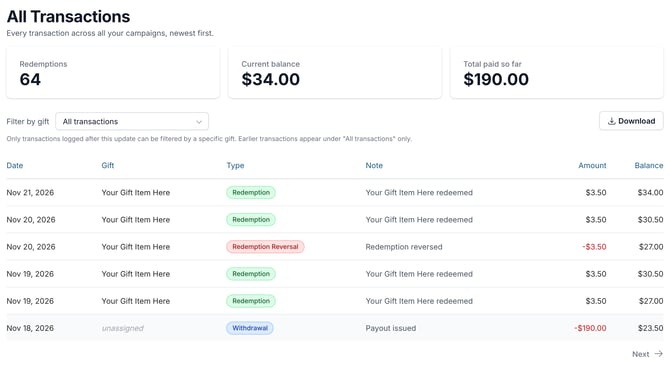
Your three totals
- Redemptions: The number of gifts redeemed at your business. Reversed redemptions aren't counted.
- Current balance: What LoLo owes you today.
- Total paid so far: Payments LoLo has already sent you.
How your balance works
Current balance equals everything LoLo owes you, minus everything already paid to you.
Each redemption adds to your balance. When a payment goes out, it's recorded as a withdrawal, and your balance goes down by that amount. Payments are issued on Wednesdays, and only when there is an outstanding balance owed to your business. If your balance is $0.00, nothing is owed, and no payment is sent.
Reading your transactions
Your transactions are listed newest first. Each line shows:
- Date: When the transaction was recorded.
- Gift: Which gift it belongs to.
- Type: Why your balance changed. See the list of types below.
- Note: A short description. For adjustments, the note explains the reason.
- Amount: How much your balance changed.
- Balance: Your running balance after that transaction.
If you have many transactions, select Next at the bottom of the table to go further back.
Transaction types
Every transaction has a type. The same key appears at the bottom of the table on your dashboard.
|
Type |
What it means |
|---|---|
|
Redemption |
A gift redeemed at your location. Adds to your balance. |
|
Redemption Reversal |
Occasionally, redemptions are logged accidentally or without actual items supplied. In these cases, we may choose to reverse a redemption. Subtracts from your balance and isn't counted in your redemption total. |
|
Bonus |
LoLo provides a $100 minimum to all completed campaigns. |
|
Withdrawal |
A payment issued to you. Subtracts from your balance since it's been paid out. |
|
Credit |
An adjustment LoLo issued to your account. Refer to the note on that line. |
|
Debit |
An adjustment LoLo issued to your account. Refer to the note on that line. |
Filter by gift
Use the Filter by gift menu to see the transactions for one campaign. You can also select a row in your Campaigns table, or the View ledger button on your campaign banner.
When you filter to a single gift, two things change:
- The totals at the top become Redemptions and Earned for that gift.
- The Balance column is hidden. Your balance belongs to your whole account, so it can't be split by gift.
Choose All transactions to see your full history and running balance again.
Why do some transactions say "unassigned"?
Payouts and manual adjustments made before this dashboard launched weren't linked to a specific gift, so they can't be filtered by gift. They still appear when you view All transactions, and they still count toward your balance. Newer transactions are linked to a gift.
Download your transactions
Select Download to save your transactions for your own bookkeeping. To reconcile your records, download your transactions and compare them against the payments you've received.
Common questions
My balance is $0.00. Why wasn't I paid this week?
Payments are issued on Wednesdays, and only when there is an outstanding balance owed to your business.. If your balance is $0.00, nothing is owed. For more on how payments work, see [Link: How do I get paid?].
The redemptions or balance on my dashboard don't match my own records. What should I do?
See more info here. You can also contact your Local Account Manager or support@joinlolo.com.