![LoLo-horizontal-2.2.png]](https://help.joinlolo.com/hs-fs/hubfs/LoLo-horizontal-2.2.png?height=50&name=LoLo-horizontal-2.2.png)
Your vendor dashboard is your free marketing report for your LoLo Campaign. It shows how many people your gift reached, how they responded, and what LoLo owes you. This article explains the top of your dashboard and your Campaigns table. To read your transactions and balance, see [Link: How do I read my transactions and balance?].
Your headline
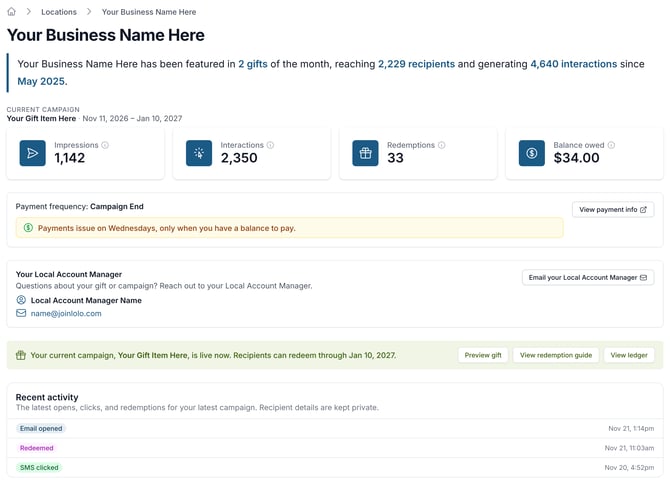
The sentence at the top of your dashboard sums up the reach of your gifts since you joined LoLo: how many LoLo campaigns you've been featured in, how many recipients they were delivered to, and how many interactions they generated.
If your first gift hasn't gone live yet, you'll see a welcome message instead. These numbers start to build once it does.
Your campaign numbers
While a gift is running, you'll see its name and dates, followed by four numbers. Hover over (or tap) the information icon next to any of them for a short explanation.
- Impressions: How many people we delivered this gift to, by email or text.
- Interactions: Every open, click, and redemption on this gift. One person can interact more than once, so this number is often higher than your impressions.
- Redemptions: Gifts redeemed at your business for this campaign. Reversed redemptions don't count.
- Balance owed: What LoLo owes you across all your campaigns, not just the current one.
Why can't I see these four numbers?
They only appear while a gift is running. Between campaigns there is no current campaign to count, so the top of your dashboard doesn't show them. Your balance stays visible in the All Transactions section, and your past results stay in the Campaigns table.
Payment details
Below your campaign numbers, a card shows how often you're paid. It also reminds you that payments are issued on Wednesdays, and only when when there is an outstanding balance owed to your business. Select View payment info to open. Read more about payments here.
Your Local Account Manager
A card shows the name and email address of your Local Account Manager, with an Email your Local Account Manager button. Contact them with any questions about your gift or campaign.
The campaign banner
The colored banner tells you where your gift stands and gives you shortcuts. What it says, and which buttons appear, depends on the stage of your campaign.
|
Stage |
What it says |
Buttons |
|---|---|---|
|
Ready |
Your gift, [name], is ready. We'll let you know once it's scheduled. |
Preview gift |
|
Upcoming |
Your next campaign, [name], starts [date]. |
Preview gift, View redemption guide |
|
Live |
Your current campaign, [name], is live now. Recipients can redeem through [date]. |
Preview gift, View redemption guide, View ledger |
|
Ended |
Your last campaign, [name], ended [date]. |
Preview gift |
- Preview gift shows your gift exactly as a recipient sees it.
- View redemption guide opens the flyer that shows your staff how to redeem gifts, with your gift details and its start and expiration dates. See this article for more info on the guide.
- View ledger takes you to your transactions for that gift.
If you don't see a banner, we don't have a gift to show for your location right now.
Recent activity
This list shows the latest opens, clicks, and redemptions on your gift, each with a date and time. It lets you see that your gift is being noticed, even before anyone redeems it.
Recipient details are always kept private. You'll see what happened and when, but never who did it. If no one has engaged yet, you'll see a note saying activity will appear as recipients engage with your gift.
Your Campaigns table
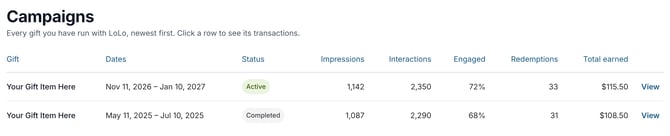
The Campaigns table lists every gift you've run with LoLo, newest first.
- Gift and Dates: The gift's name and the dates it was available.
- Status: See the list below.
- Impressions and Interactions: The same counts described above, for that campaign.
- Engaged: The share of recipients we delivered to who opened, clicked, or redeemed at least once. A higher percentage means more of the people we reached paid attention to your gift.
- Redemptions: Gifts redeemed at your business. Reversed redemptions don't count.
- Total earned: The amount that campaign has earned you.
Select any row, or its View link, to filter your transactions to just that gift and jump down to them.
Campaign statuses:
- Upcoming: Scheduled, but not started yet.
- Active: Live now.
- Completed: Finished.
- Not scheduled: Your gift is ready, but it doesn't have dates yet.
- Inactive: Occasionally, a campaign is paused before it is completed. If that’s the case, the status becomes inactive.
Common questions
Why is my Interactions number bigger than my Impressions number?
Impressions count the people we delivered your gift to. Interactions count every action, and one person might open an email, click through, and later redeem, which adds up to several interactions.
Can I see who opened or redeemed my gift?
No. To protect recipients' privacy, your dashboard shows what happened and when, but never who did it.
Still have a question? Contact your Local Account Manager or support@joinlolo.com.