![LoLo-horizontal-2.2.png]](https://help.joinlolo.com/hs-fs/hubfs/LoLo-horizontal-2.2.png?height=50&name=LoLo-horizontal-2.2.png)
You can import multiple contacts into LoLo at once using the "Import" tool and a .CSV file.
Prepare for Import
To prepare your file for import, follow these steps.
-
To begin, open a new blank worksheet in a spreadsheet program such as Microsoft Excel, Numbers, or Google Sheets. If you prefer, you can also download the sample .CSV file available on the LoLo import page and proceed directly to step 3.
- You must include a first name, last name, and at least one form of contact information, either an email address or a cell phone number. While having both is beneficial, only one is required for successful import.
- First Name (required)
- Last Name (required)
- Email (either email or phone required for each contact)
- Phone (either email or phone required for each contact)
- Zip Code (optional, but will match your contact to a gift area)
- Zone (Optional -only use if you know the exact name of the zone)
EXAMPLE OF HOW YOUR DOCUMENT WILL LOOK:
- Enter the information for each contact into the appropriate fields within the spreadsheet.
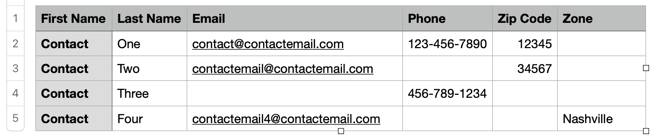
- You must include a first name, last name, and at least one form of contact information, either an email address or a cell phone number. While having both is beneficial, only one is required for successful import.
- If you include the zip code in your file, LoLo will automatically assign the nearest gift area based on that zip code, up to a maximum distance of 30 miles. After the import, you will have the flexibility to modify this assignment as needed.
- If you are aware of the specific gift area you wish to designate, you may enter it in the "Zone" column. If you are uncertain about the exact name of the gift area, we recommend that you leave the cells blank under the header or don't include the column in your file.
- You must include a first name, last name, and at least one form of contact information, either an email address or a cell phone number. While having both is beneficial, only one is required for successful import.
Nice job! Now that you've prepared your import file, you're ready to import.
Import the File into Your LoLo Account
1. Log into LoLo and head over to the "Contacts" tab on the left
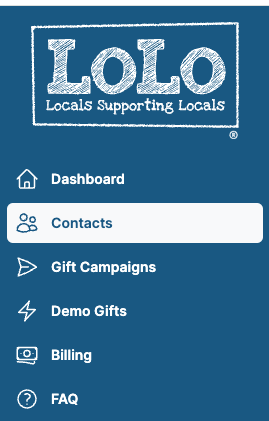
2. Click on the "Imported Files" button on the top right of the screen, above the contact list area

3. On the next screen, if you've never imported a file before, you'll click the button to add a file. If you have imported files since June 9th of 2026, you'll see them listed here.
4. If you've already formatted a file, you'll skip to step 2, where you have 2 options for uploading your prepared file: you can either drag and drop the file directly into the designated area, or you can select the "Upload a File" button to browse and choose the .CSV file from your saved location.
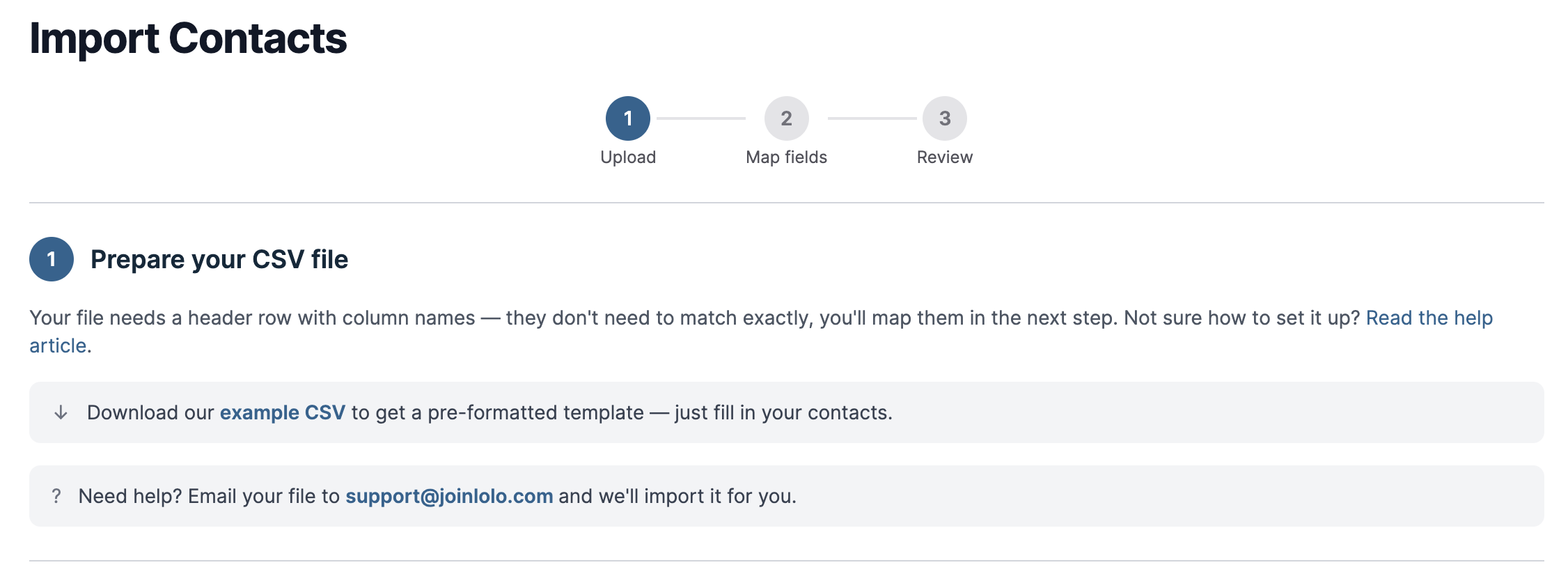
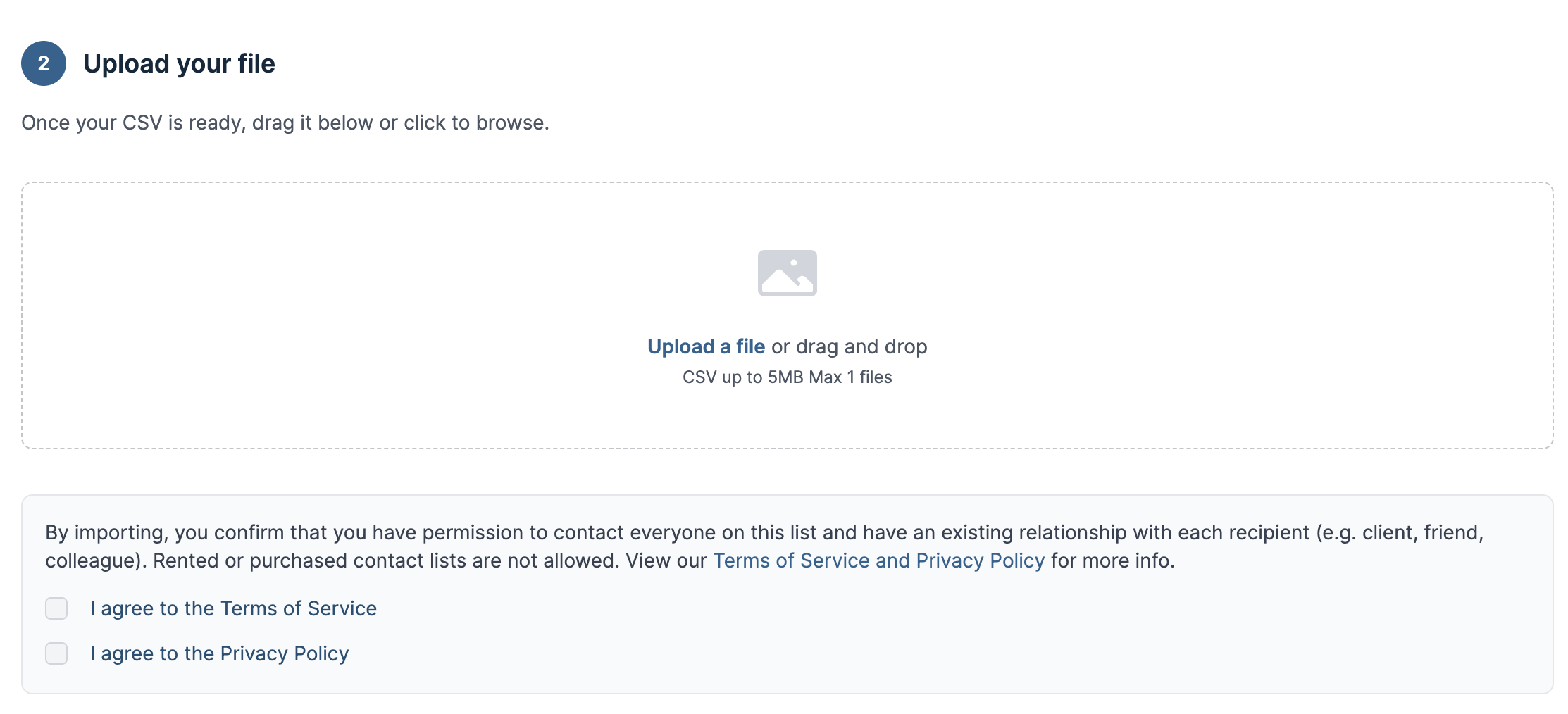
5. Once you've selected your file, make sure you click the boxes below to confirm that you've read and are agreeing to our Privacy Policy and Terms of Use. To review these policies, click the link above in the text.
6. Click the "Upload and Continue" button at the bottom of the page and your file will be processed.
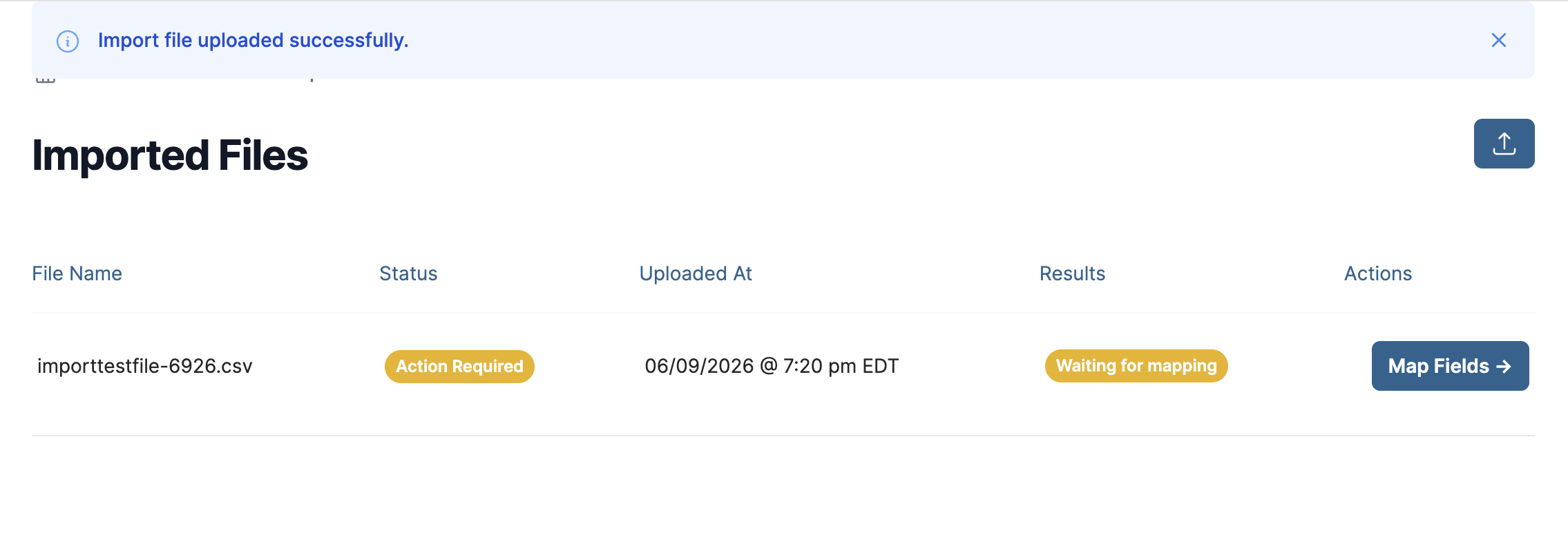
7. You'll be taken back to the imported files page. Here, you can see the status of your file and you can proceed to the next step, matching your headers!
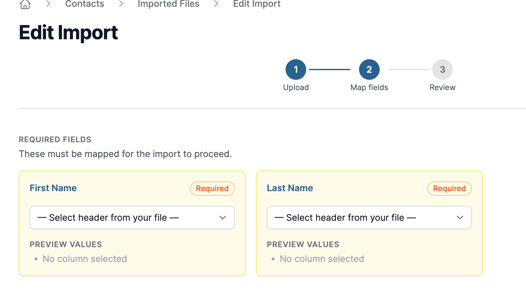
8. The only fields you can import into LoLo are: First Name, Last Name, Email, Phone Number, Zip Code, Zone and Country. On the match screen, you'll need to match a header from your file for both first name and last name, they're required. You should match at least one of email or phone (you can match both and have a mix of contact methods for your contacts). The other fields are optional. The country will default to what's set on your account, so there's no need to include it in the file. If you include the zip code in your file, LoLo will automatically assign the nearest gift area based on that zip code, up to a maximum distance of 30 miles. After the import, you will have the flexibility to modify this assignment as needed. Only include zone names if you know exactly how they are spelled in our platform.
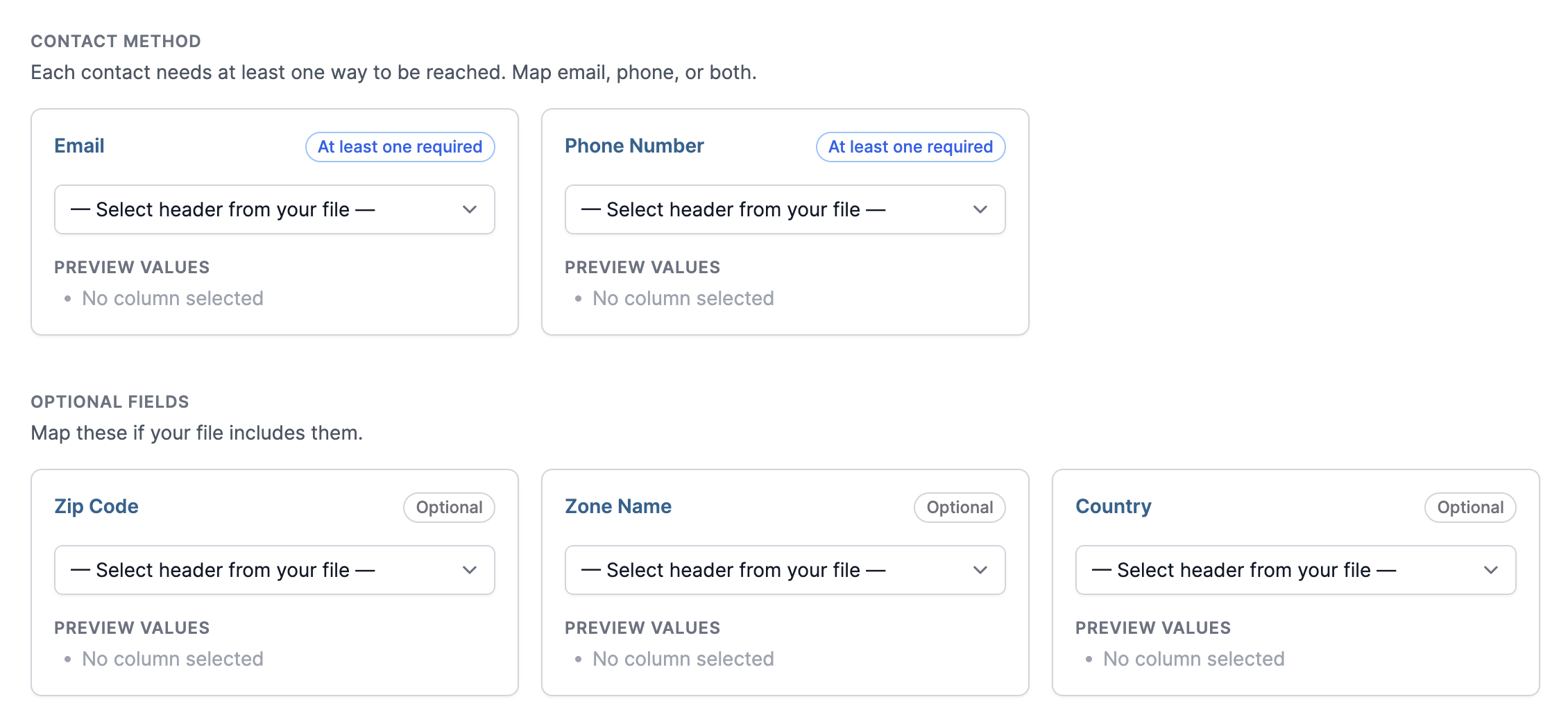

9. Once you've matched all your headers, click the "Confirm and Import" button.
10. The importer will let you know which contacts successfully imported, and which ones had problems. For the contacts that cannot be imported, a reason will be listed, and you have the option to click in the row and edit your contact to retry the import.
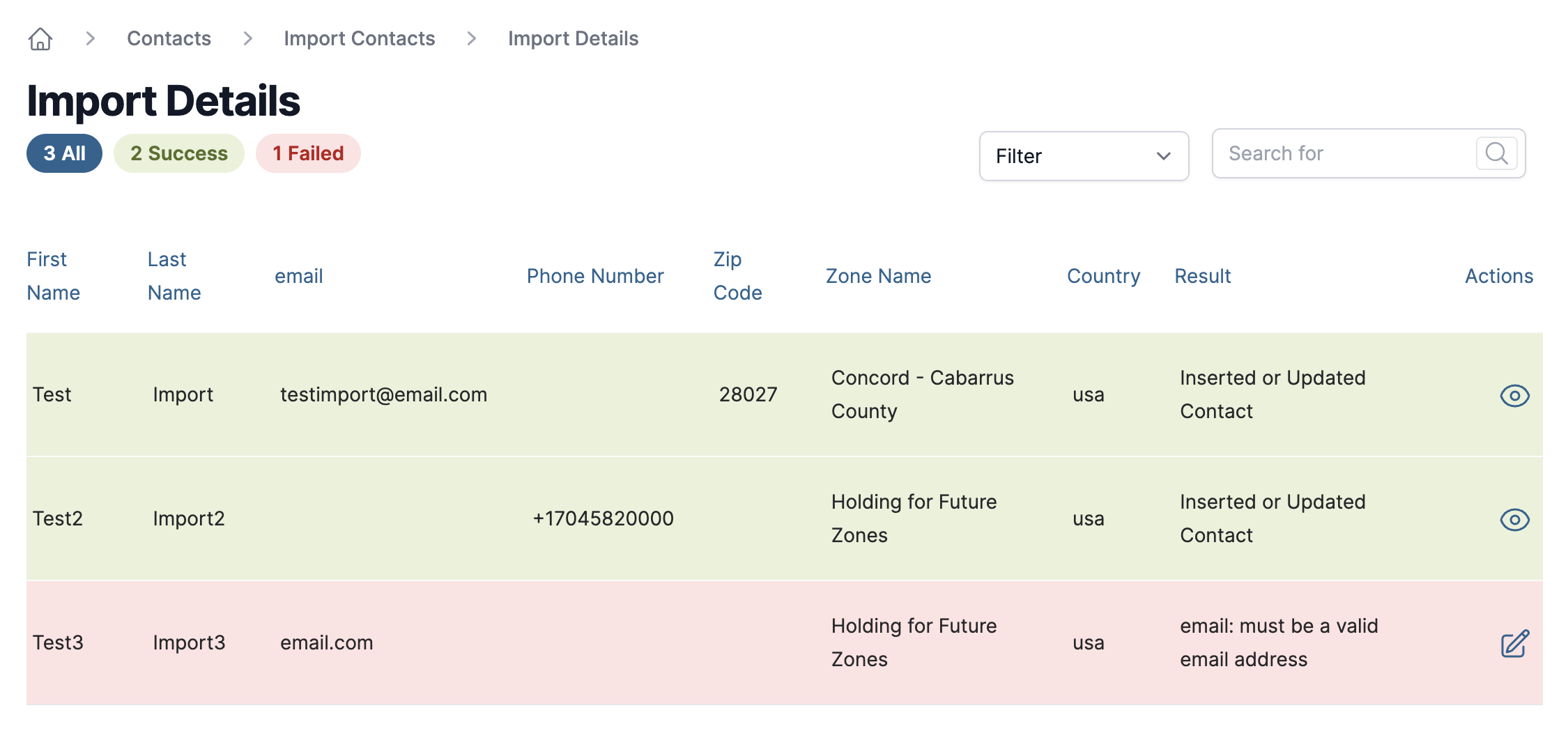
Click the button to the right of the contact row to edit your contact and correct any issues, then you can retry the import for that contact.
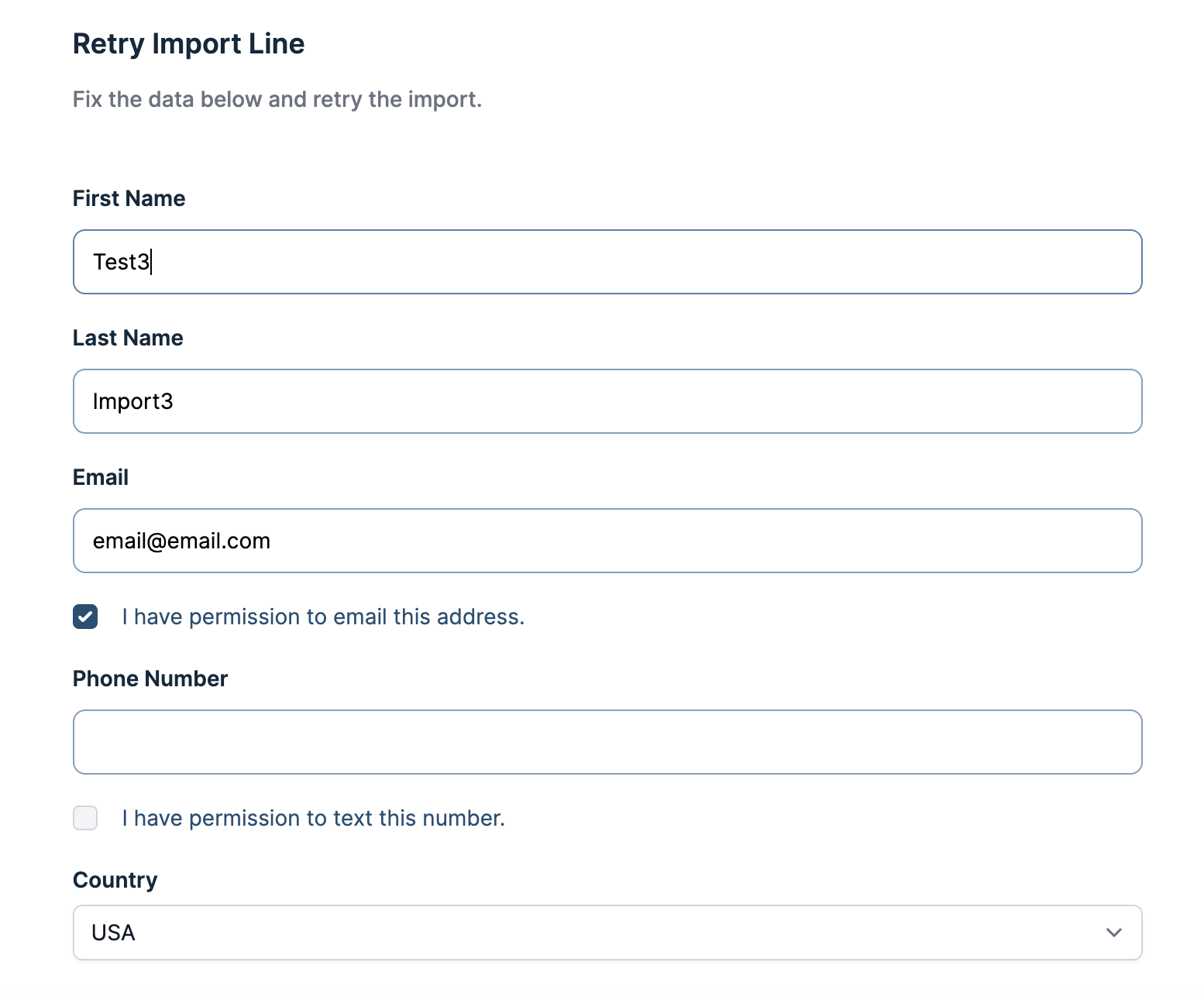
Have a contact that didn't import? Here are some common reasons why a contact might not import correctly:
- The phone number provided is not recognized as a valid mobile number, as our platform conducts a verification process to ensure its authenticity.
- Each contact must possess a unique email address and/or phone number to ensure successful import. If a duplicate email or phone number is detected among your contacts, the import process will not proceed for those entries.
- The email format is not valid
You've successfully imported your contacts into LoLo! You can now click the "Contacts" tab and make any edits needed to each contact.
You can import as many times as you need to make updates to your contact list.